Ask
Pick up the thread
Ask a question about what you’ve written. Finis finds relevant chapters locally and suggests them for context. You can check and change the selection before sending.
Some days are for finding the words. Others are for moving chapters around or reading it all again. Finis gives you a place for every stage, on Mac and iPad, right through to sharing your manuscript. When you want a fresh pair of eyes, Virgil brings AI beside the page.
VIRGIL · YOUR EDITORIAL ASSISTANT
A question about a character. A dialogue that feels slow. A sentence worth another try. Virgil brings AI into that work, right beside the page. Ask your book a question, get a second reading or explore an alternative. You decide what stays.
DeepSeek, OpenAI, Anthropic, Google Gemini and Grok (xAI). Choose a model for each task, even from different services.
Read the Virgil guideAsk
Ask a question about what you’ve written. Finis finds relevant chapters locally and suggests them for context. You can check and change the selection before sending.
Reread
Look for repetition, unclear passages, uneven pacing or issues with dialogue and continuity. Keep useful observations as comments on the text.
Synopsis
Draft a synopsis from the open document. Read it, edit it and, when it feels right, use it in your book’s outline.
Variant
Select a passage and ask for an alternative. You can add it as a tracked change, ready to accept or reject during revision.
Virgil lives in the inspector, beside your manuscript. Open it when you need it with ⌥⌘A. Start with a connected service and the text you want to work on.
In Settings › Virgil, enter your API key and choose Verify and save. Finis reads the model catalog and keeps your key in the Keychain of the Mac or iPad you enter it on.
Assign a model to Ask, Reread, Synopsis and Variant. Use one for everything or combine several. Catalogs update from your connected services; availability and compatibility depend on the model and your account.
Before Send, you can see which texts will be shared, how many words, and with which service and model. You can change the selection. Finis asks for your consent before sharing text with each service for the first time.
Responses don’t change the manuscript on their own. Save an answer as a note, add an observation as a comment or propose a variant in the text. Saved notes keep a record of the service and model used. You decide what becomes part of the project.
Selected texts go directly from your Mac or iPad to the named service only when you press Send. Notes and references aren’t added automatically. Withdraw consent for a service or turn Virgil off in Settings. Each service handles the data under the terms that apply to your account.
Virgil is optional. It needs an Internet connection and your own API key. Usage follows your chosen service’s plan and is separate from the 14-day trial and the Finis purchase. No AI credit is included.
Open a chapter and pick up your train of thought. The toolbar fades as you type, the page is as wide as you like, and Light, Sepia or Dark paper makes the space feel yours.
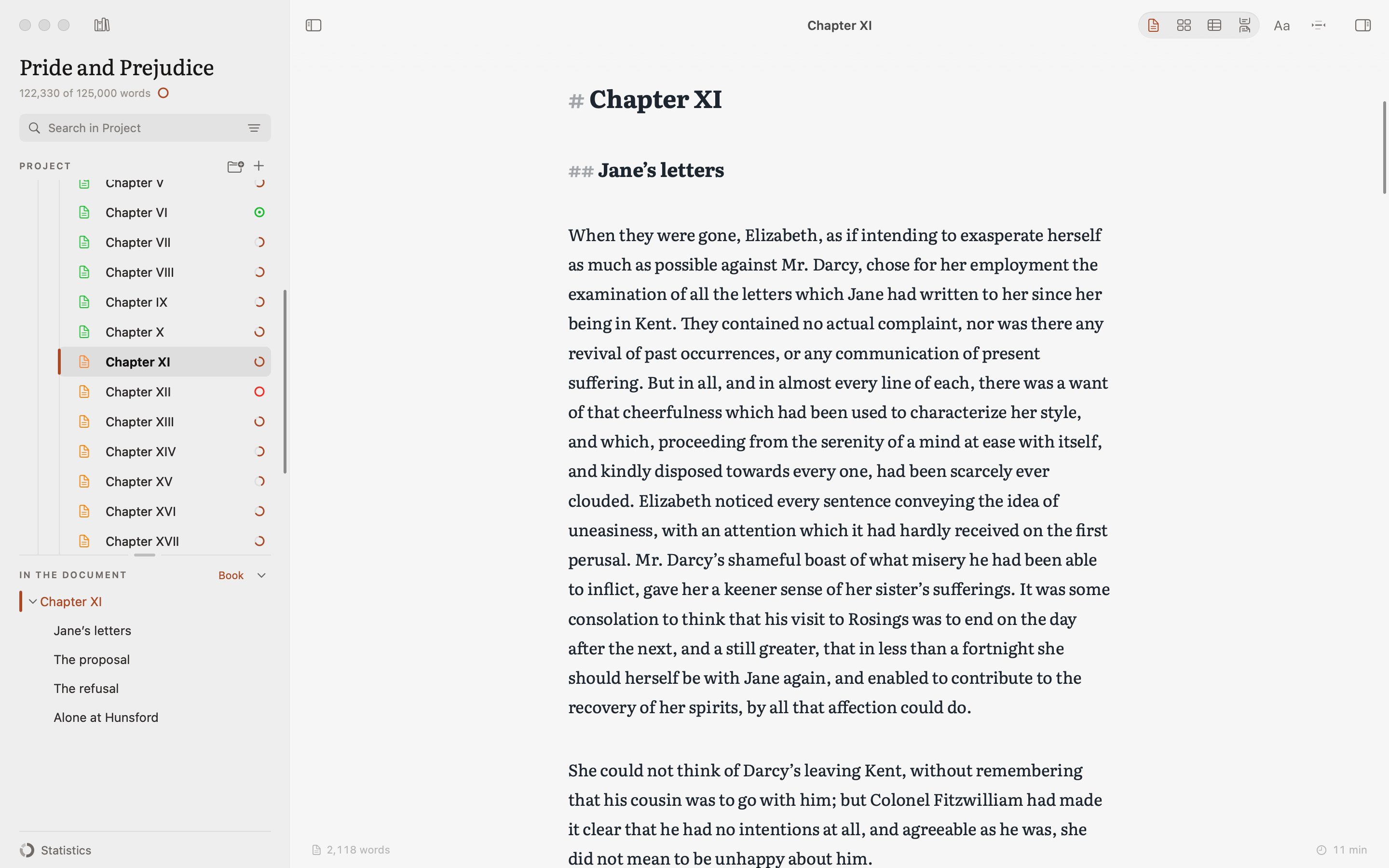
You’ll spend a lot of time with these pages. Choose Literata or a clean sans-serif, then adjust line spacing, paragraph spacing and indents until writing and rereading feel comfortable.
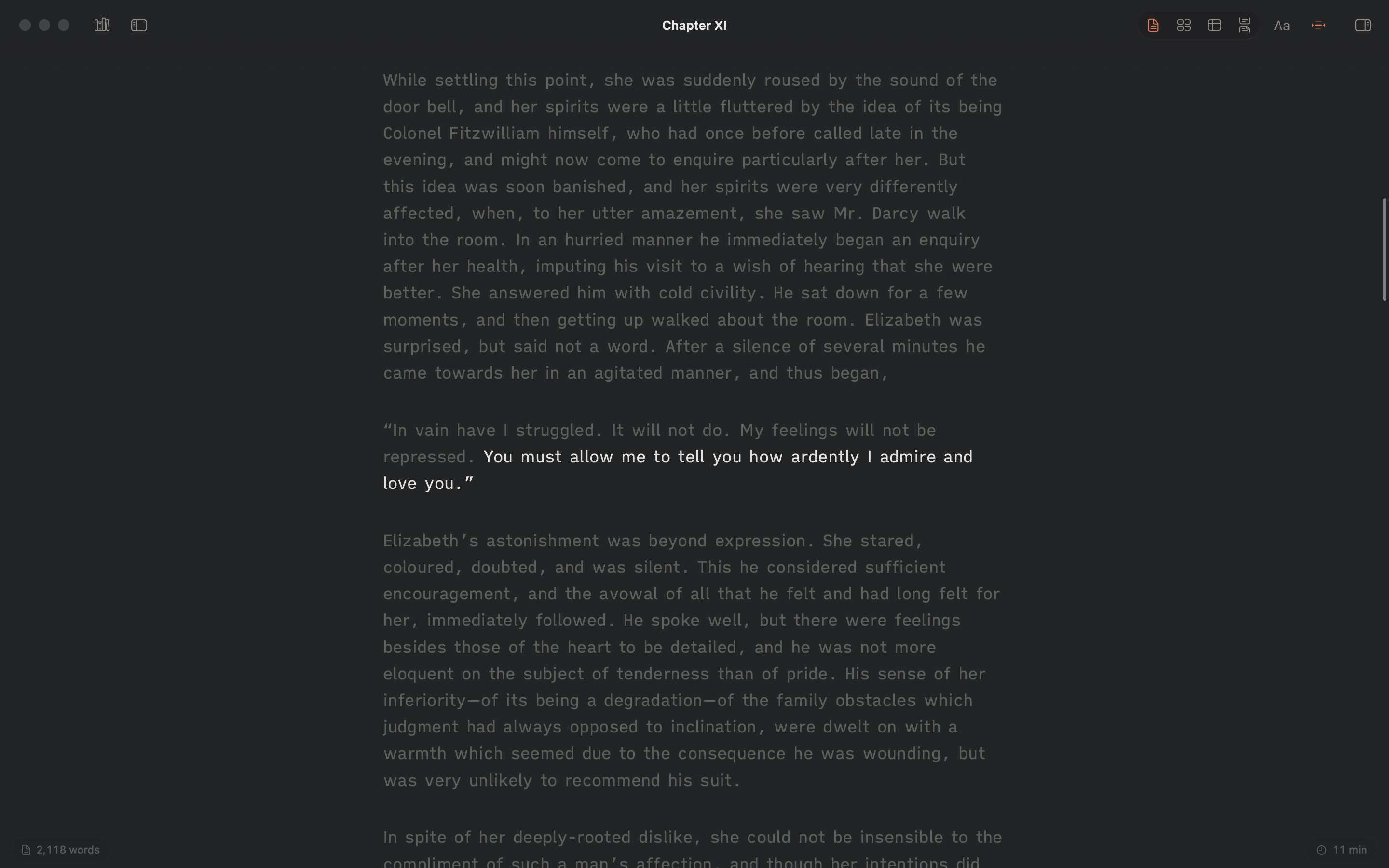
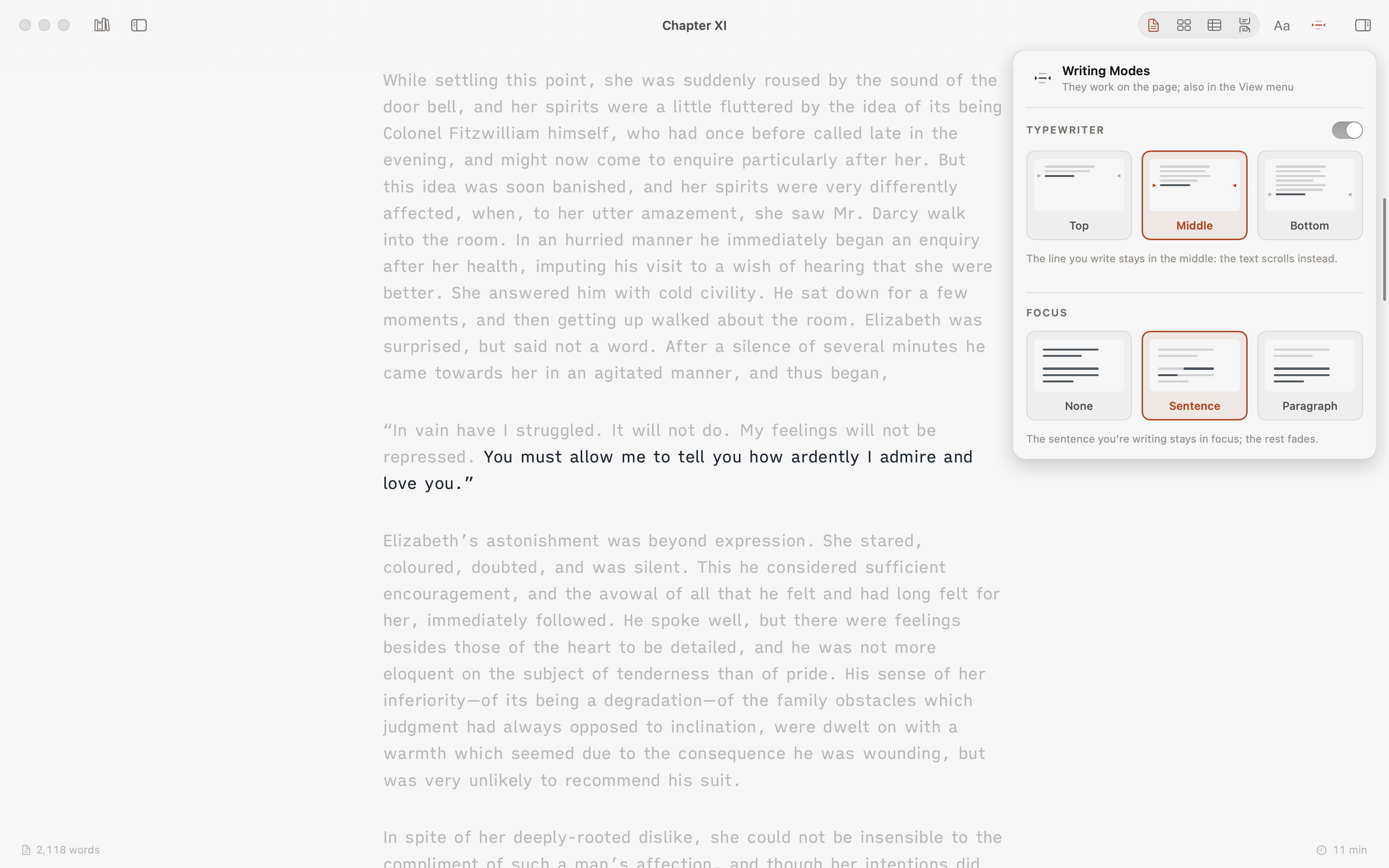
Use Focus to bring a sentence or paragraph forward. Turn on Typewriter mode to keep your current line in the middle of the window, so your eyes can stay with the words as they come.
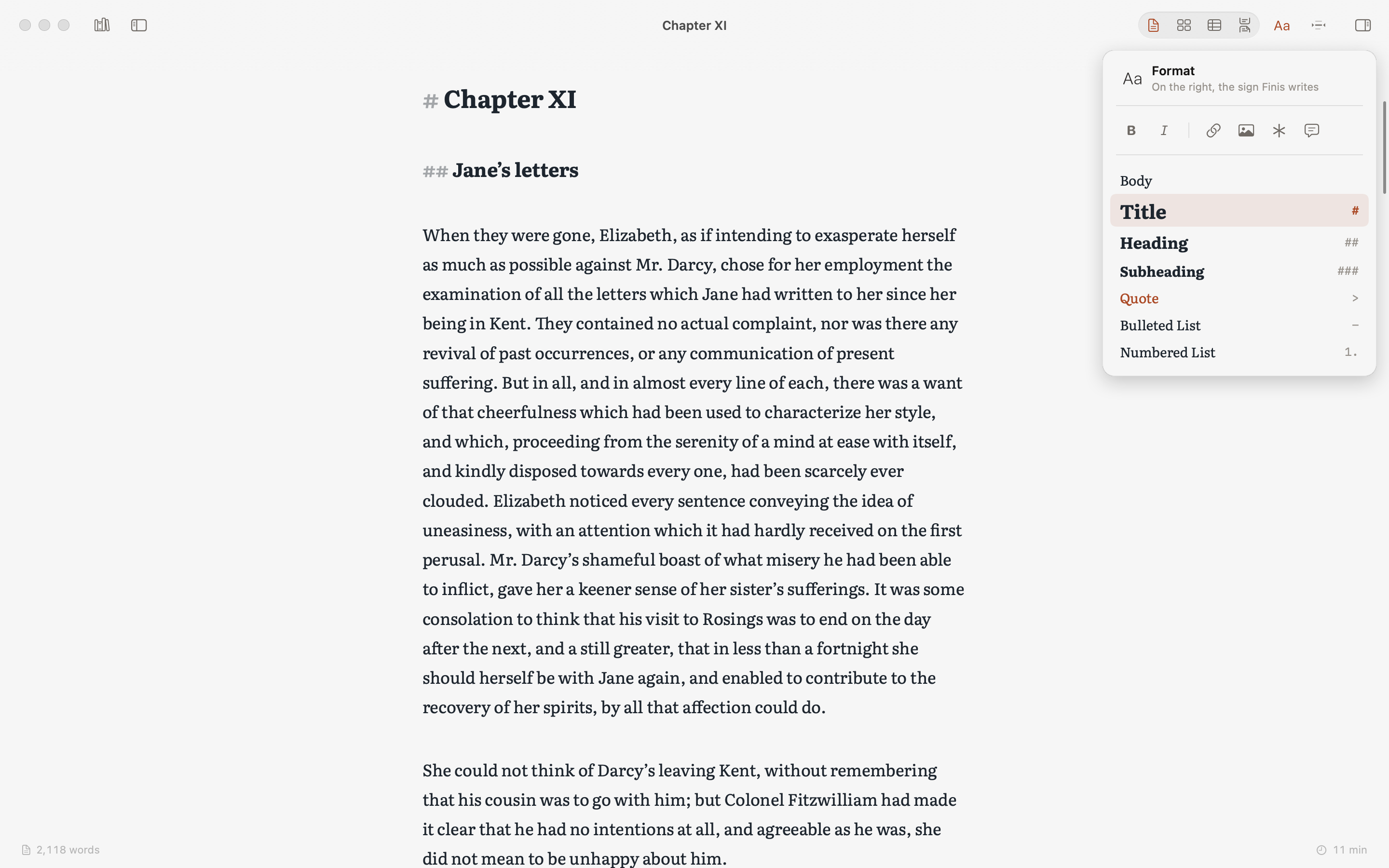
Add headings, quotes, lists, bold and italic from the Aa panel, and keep them when you paste from Word or Google Docs. You can shape your text from the first draft, with Markdown formatting just a click away.
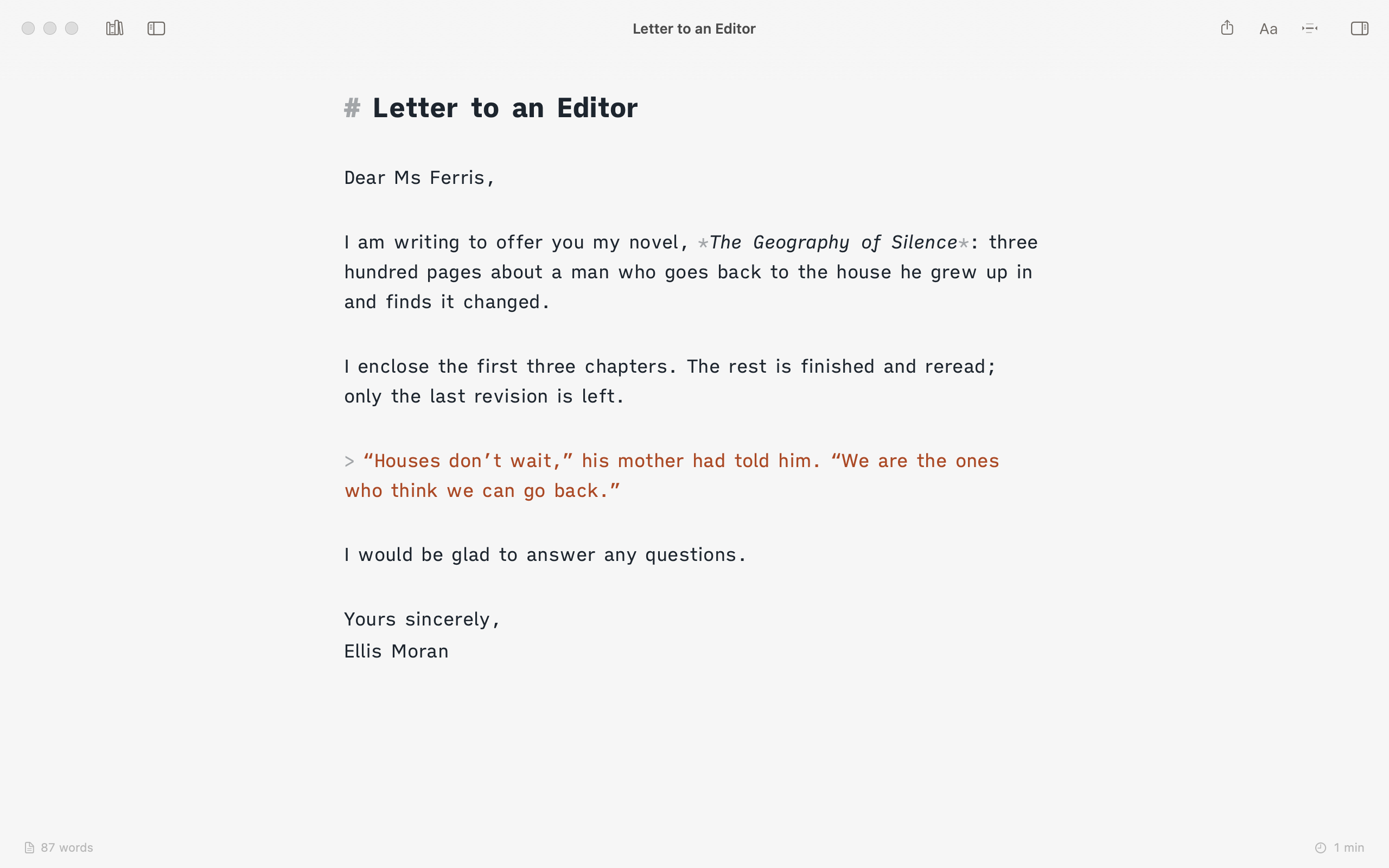
A letter to an agent, an article, an idea worth keeping: open a .md or .txt file and start writing. Finis saves it automatically, giving a short piece the same attention as your book: its headings in the sidebar, comments and suggestions in the inspector. You’ll find it in Recents, and the + keeps it in the Library beside your projects; the same goes for a folder of texts, even one from Obsidian or iA Writer. When a text becomes a book, Add to a Project copies it into one of your projects, split into chapters if you like.
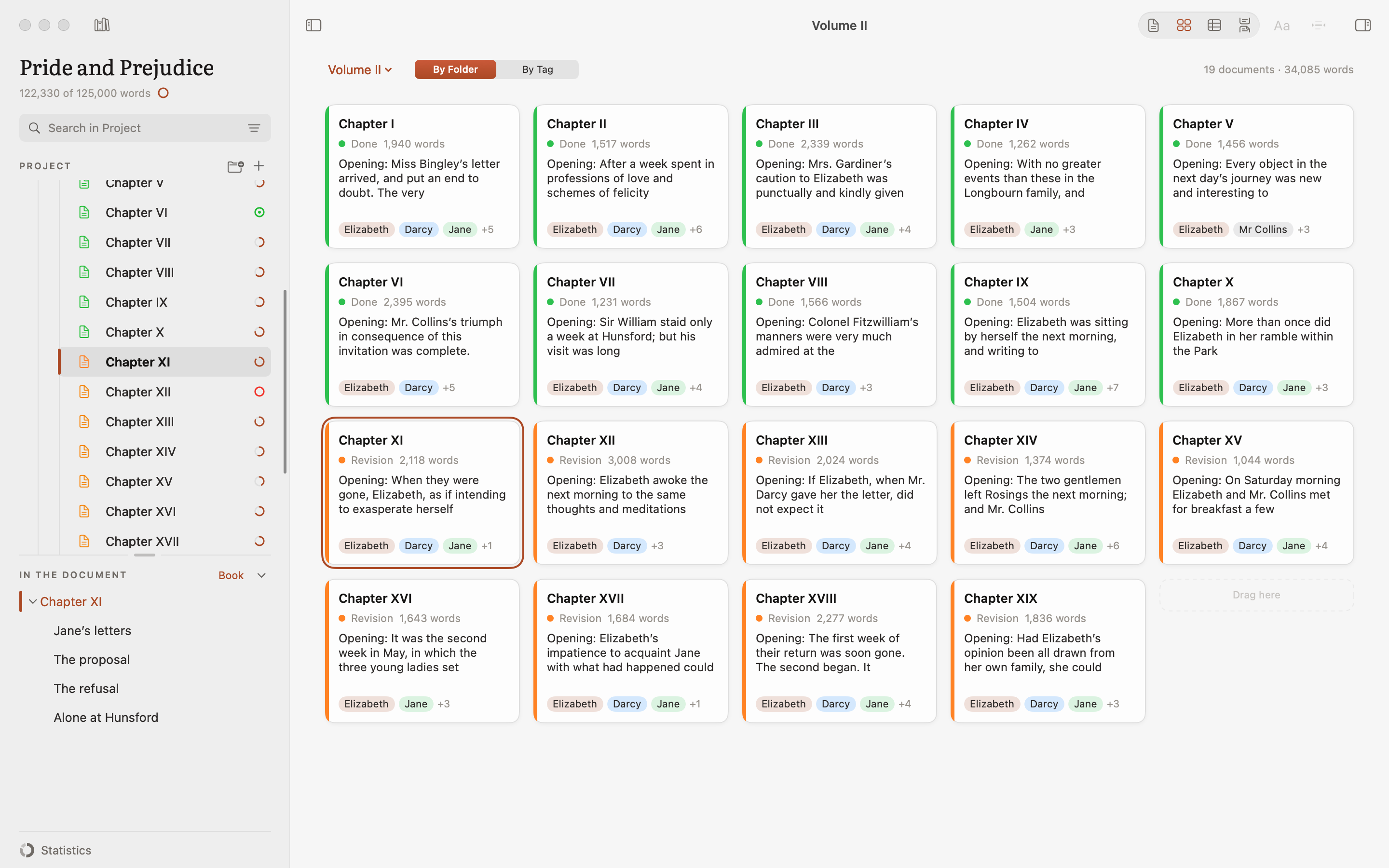
Lay out your book on the board and try a different structure by moving the cards. Each chapter shows its status, word count and opening line, so you can find your bearings at a glance.
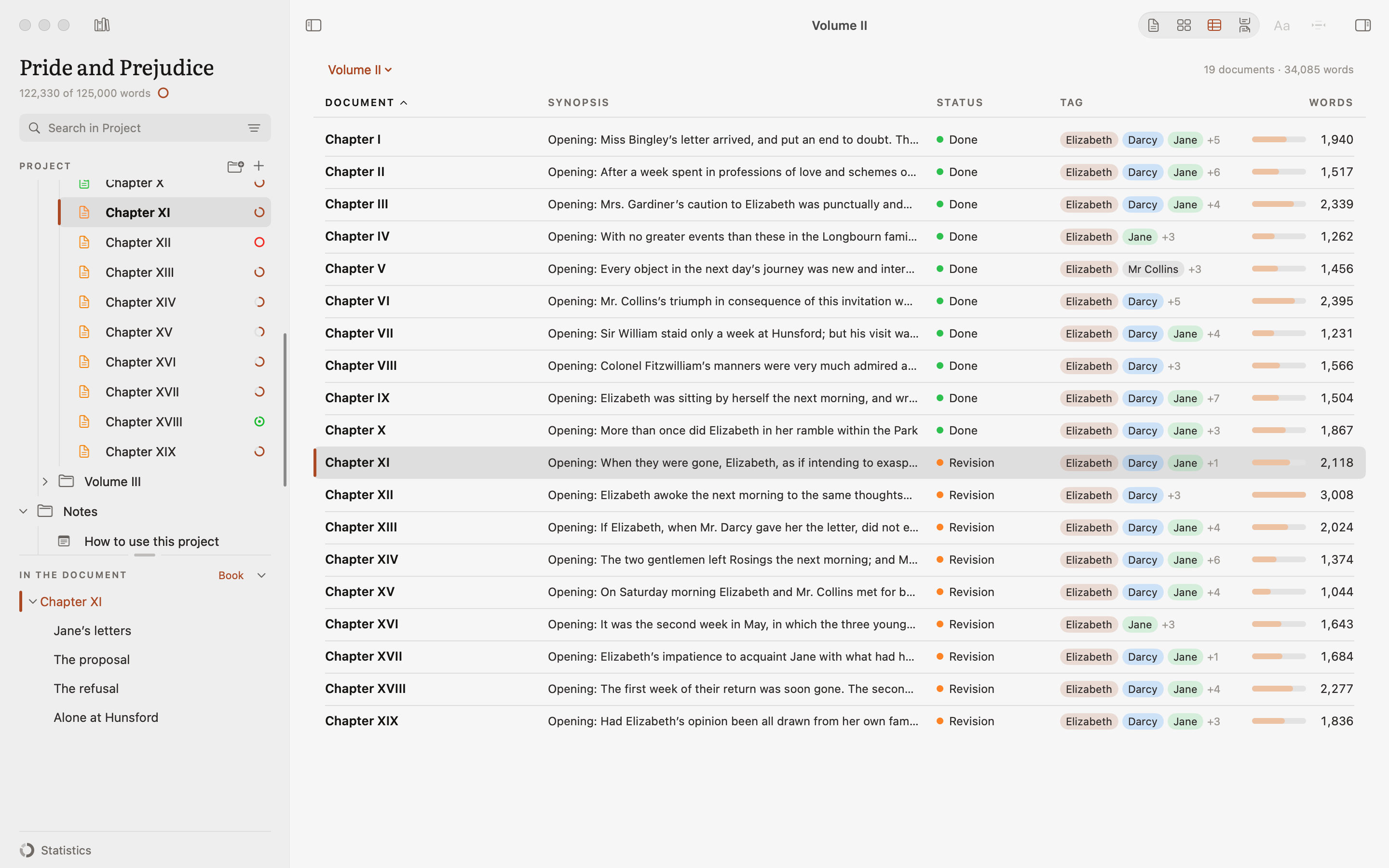
The outline puts each chapter on one line: synopsis, status, tags and word count. Spot the sections that need work, check the balance of your book and decide where to begin today.
Read the chapters of a part as one continuous text. Follow the rhythm, check the transitions, bring the dialogue forward with Emphasize › Dialogue, and experience the book the way a reader will.
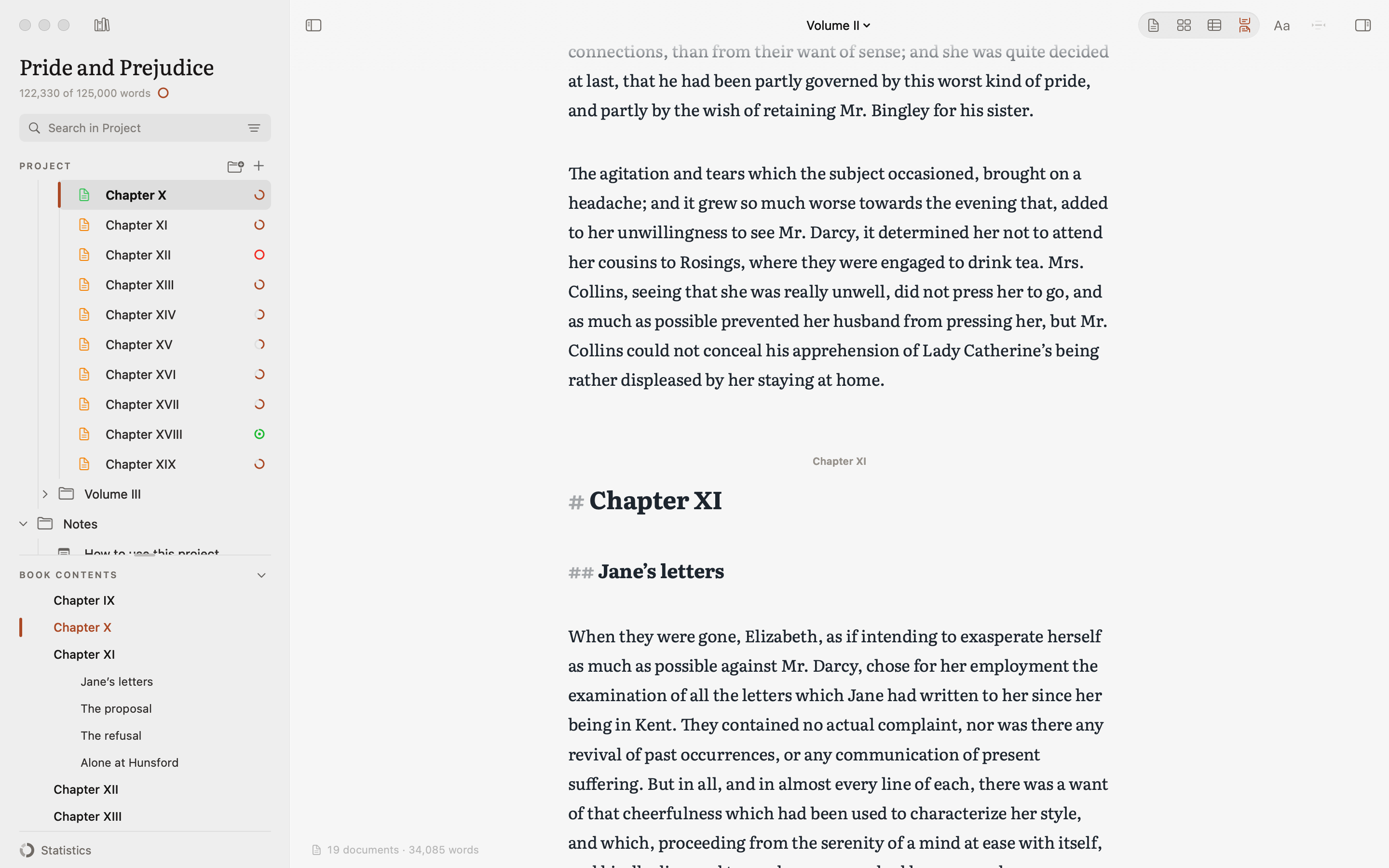
Your chapter’s synopsis, notes and goal sit beside the page. A passage copied from the web becomes a note with Paste as Note, with the site and the date. Keep the details you need in view, ready to help you pick up where you left off.
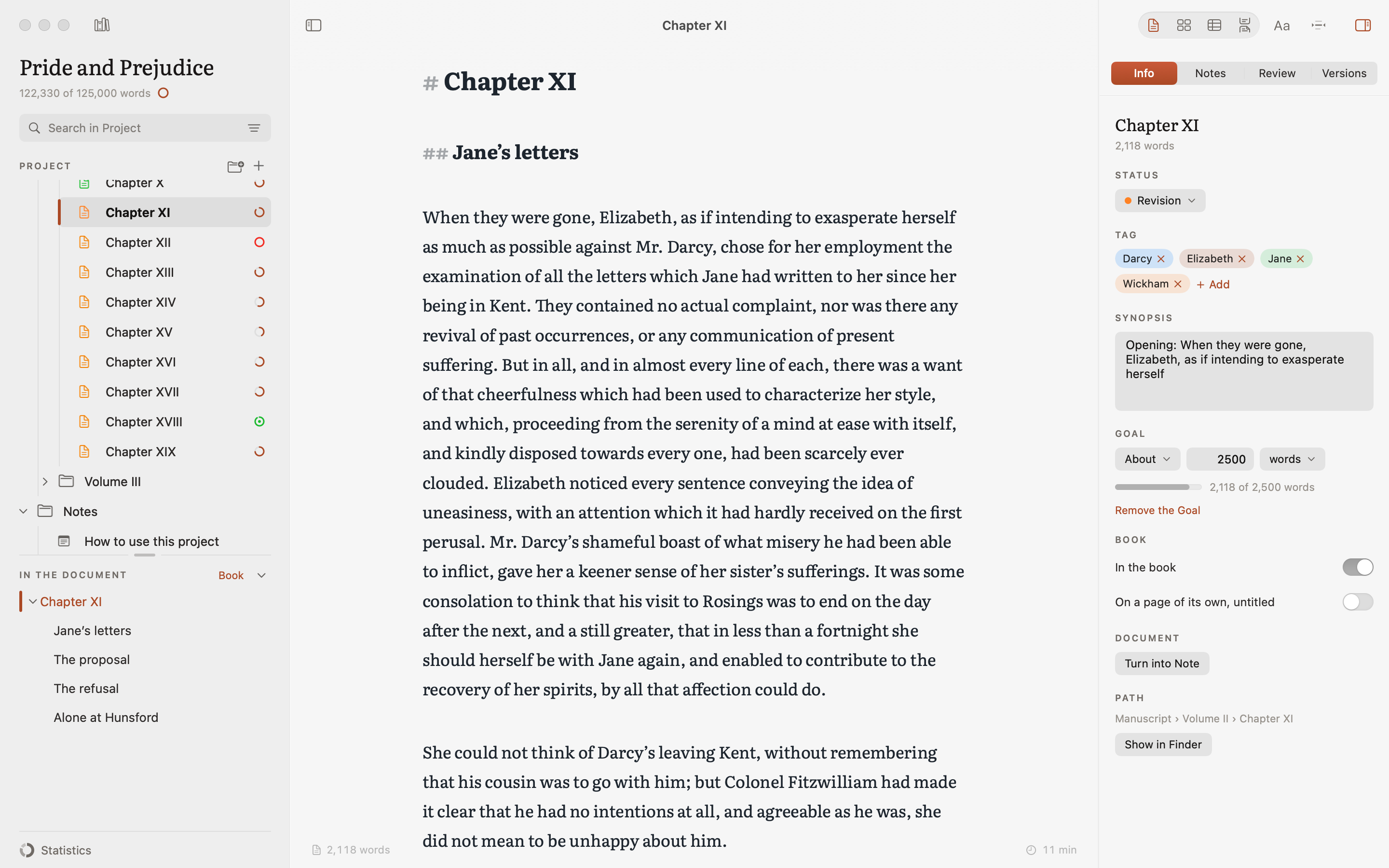
Track down a name, a phrase or a detail across the whole project. Search handles accented characters, Replace helps you update the passages that need a change, and regular expressions are there for finer searches.
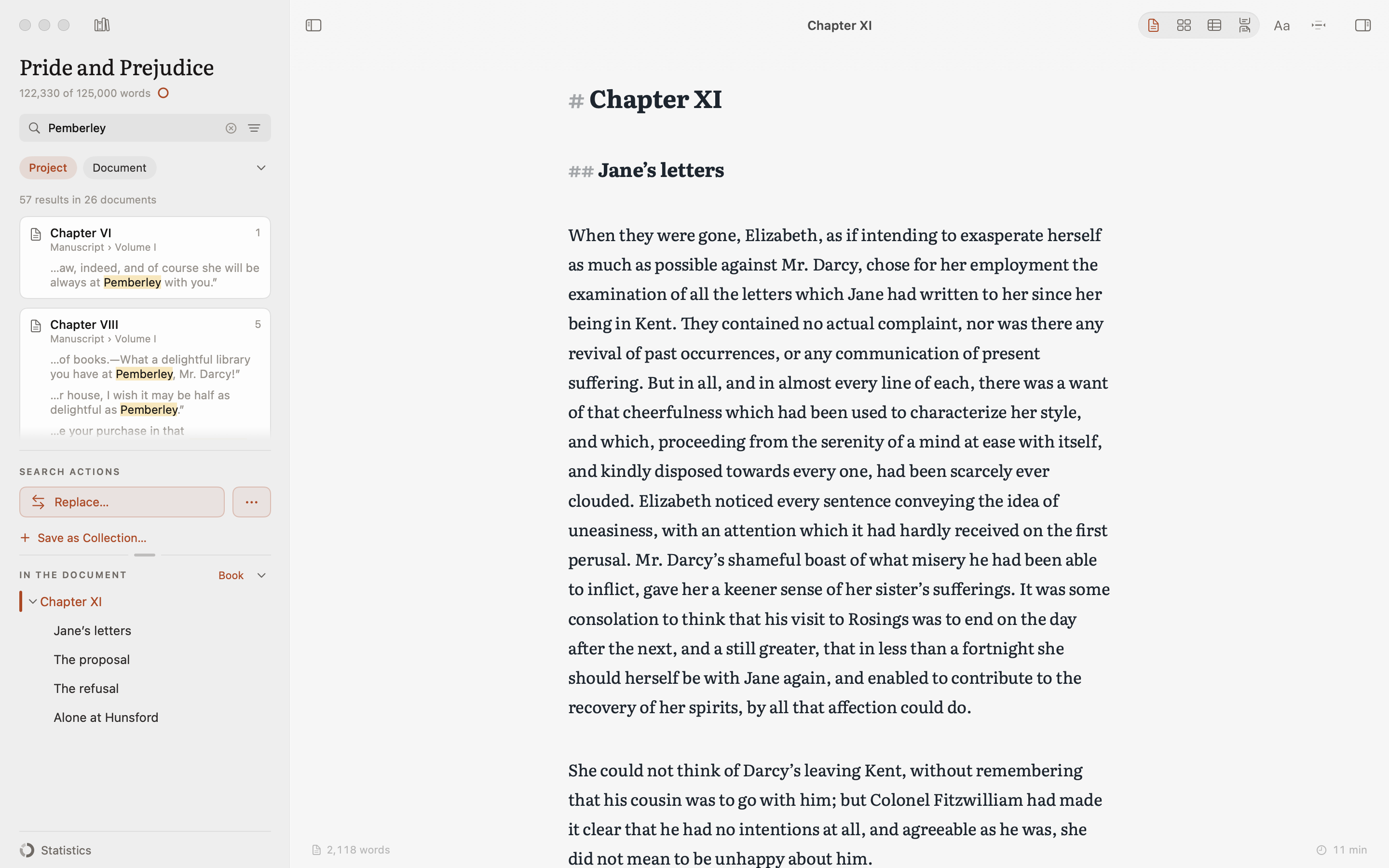
With By Tag the board becomes a map: a row for each character, place or point of view, the chapters in columns in the book’s order. See at a glance where a thread comes in, where it breaks off and where it crosses the others.
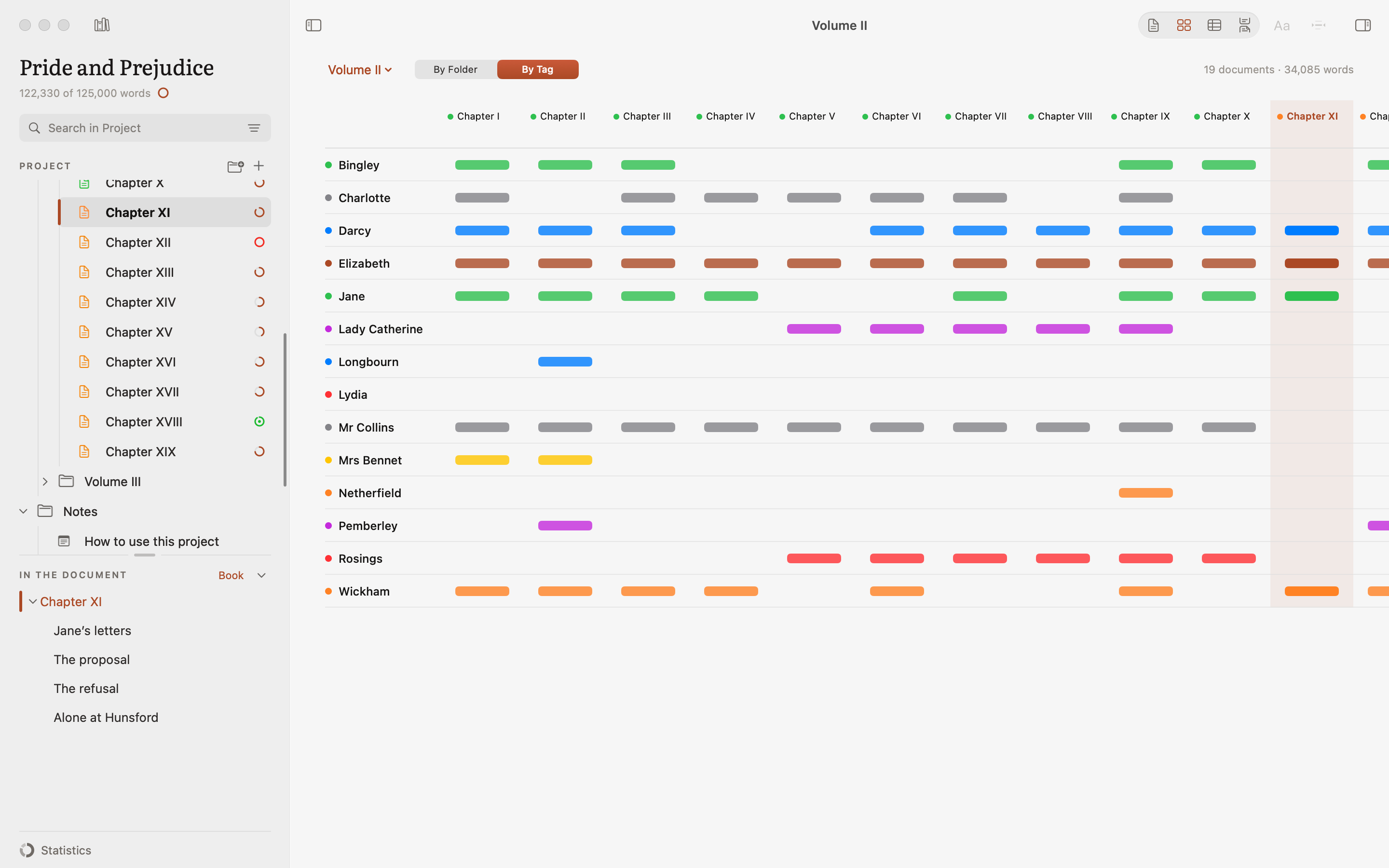
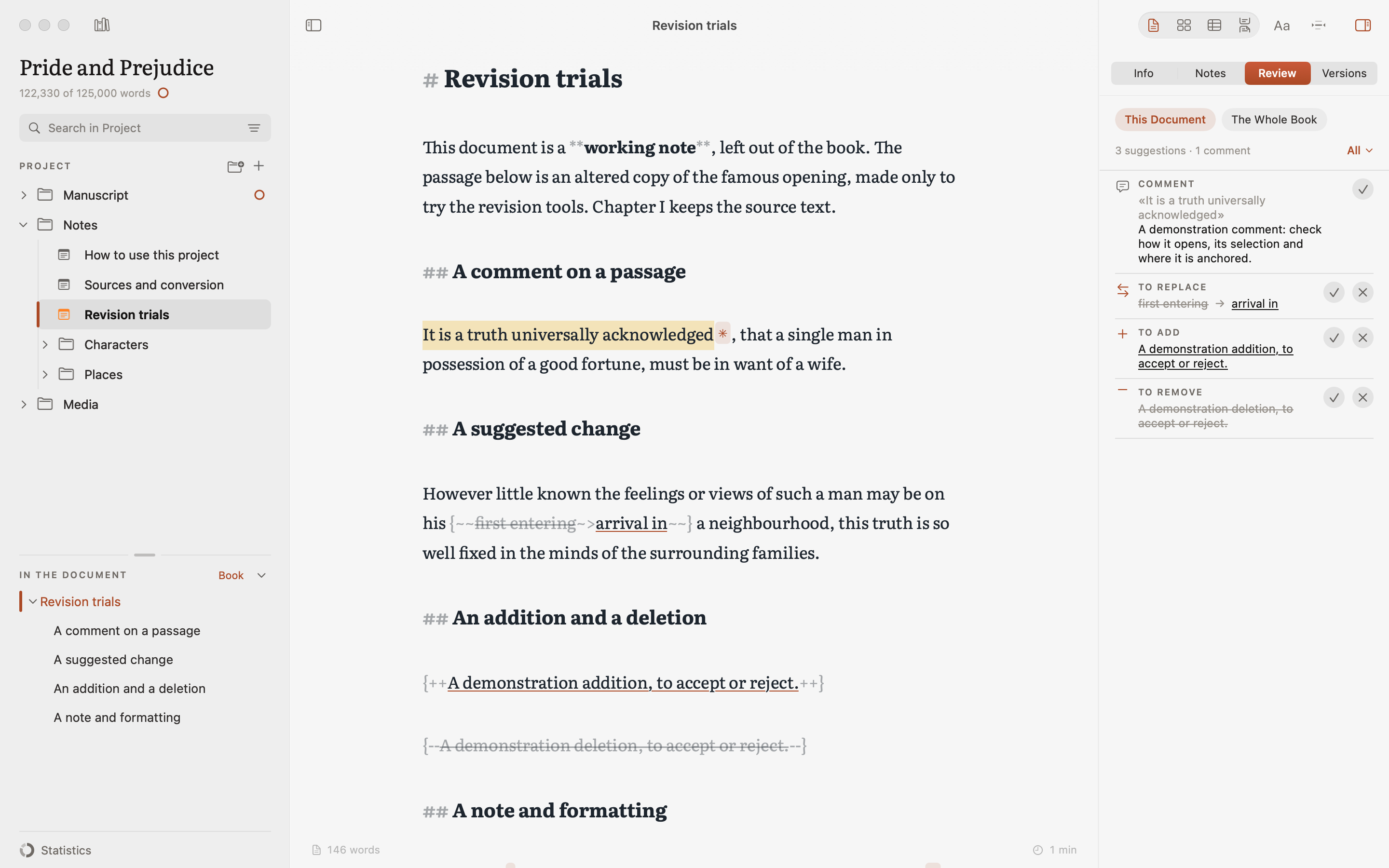
Leave a question in a comment or try an edit before committing to it. Review suggestions one at a time or all together, and compare or restore earlier versions when you want to revisit a choice.
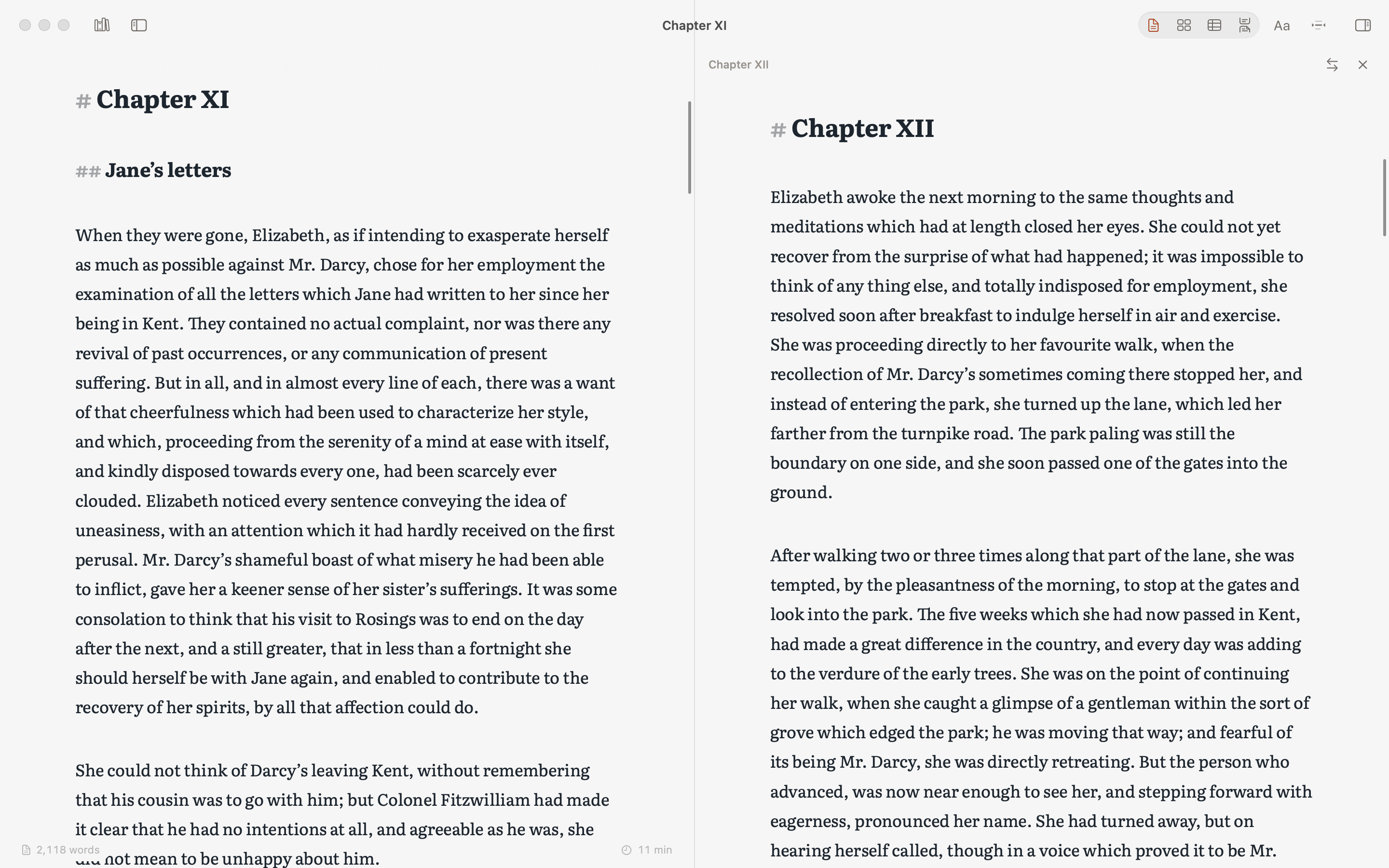
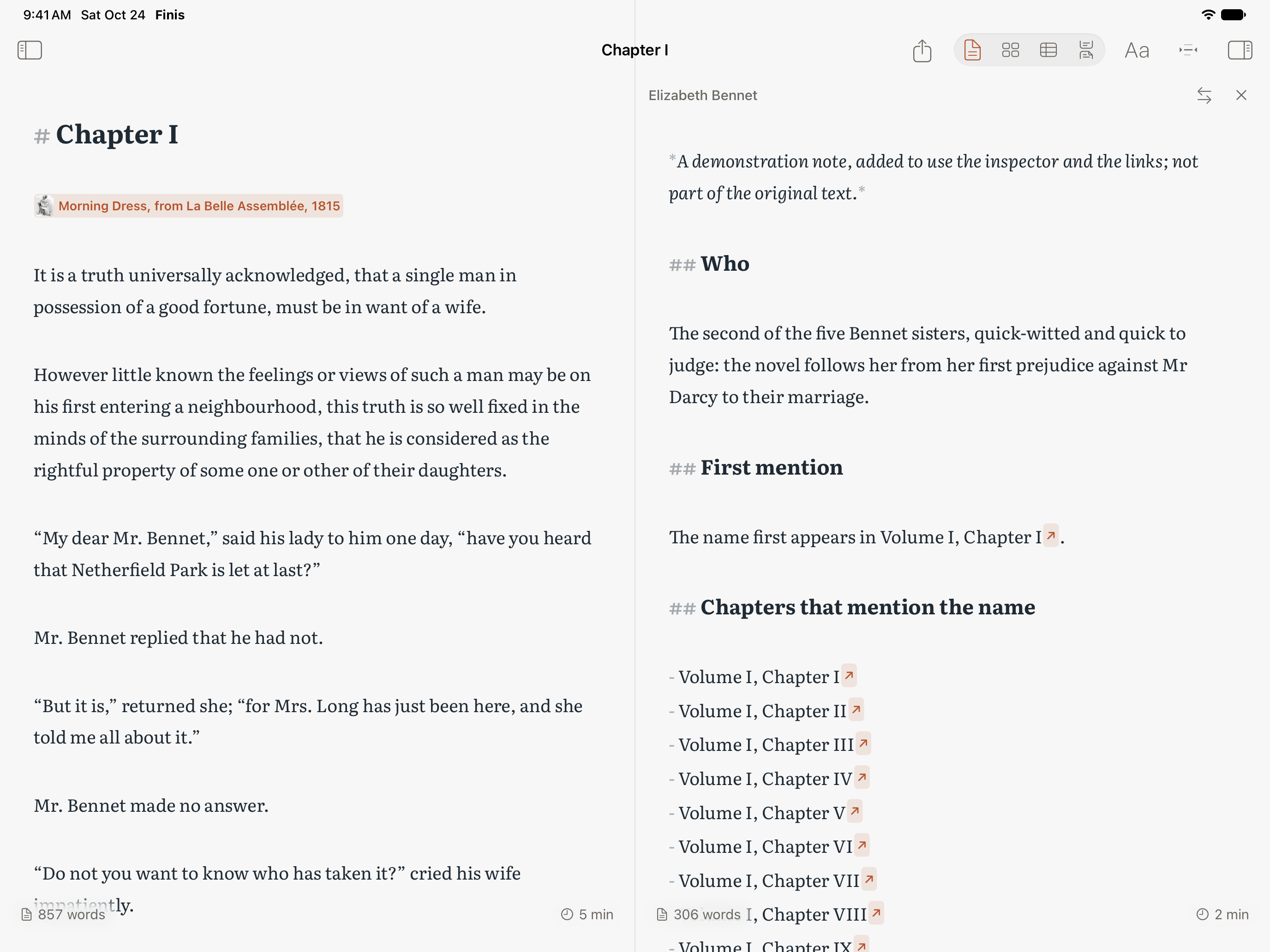
Put a chapter beside its notes or the chapter that follows. Compare passages and check your references as you work, with both documents open in front of you.
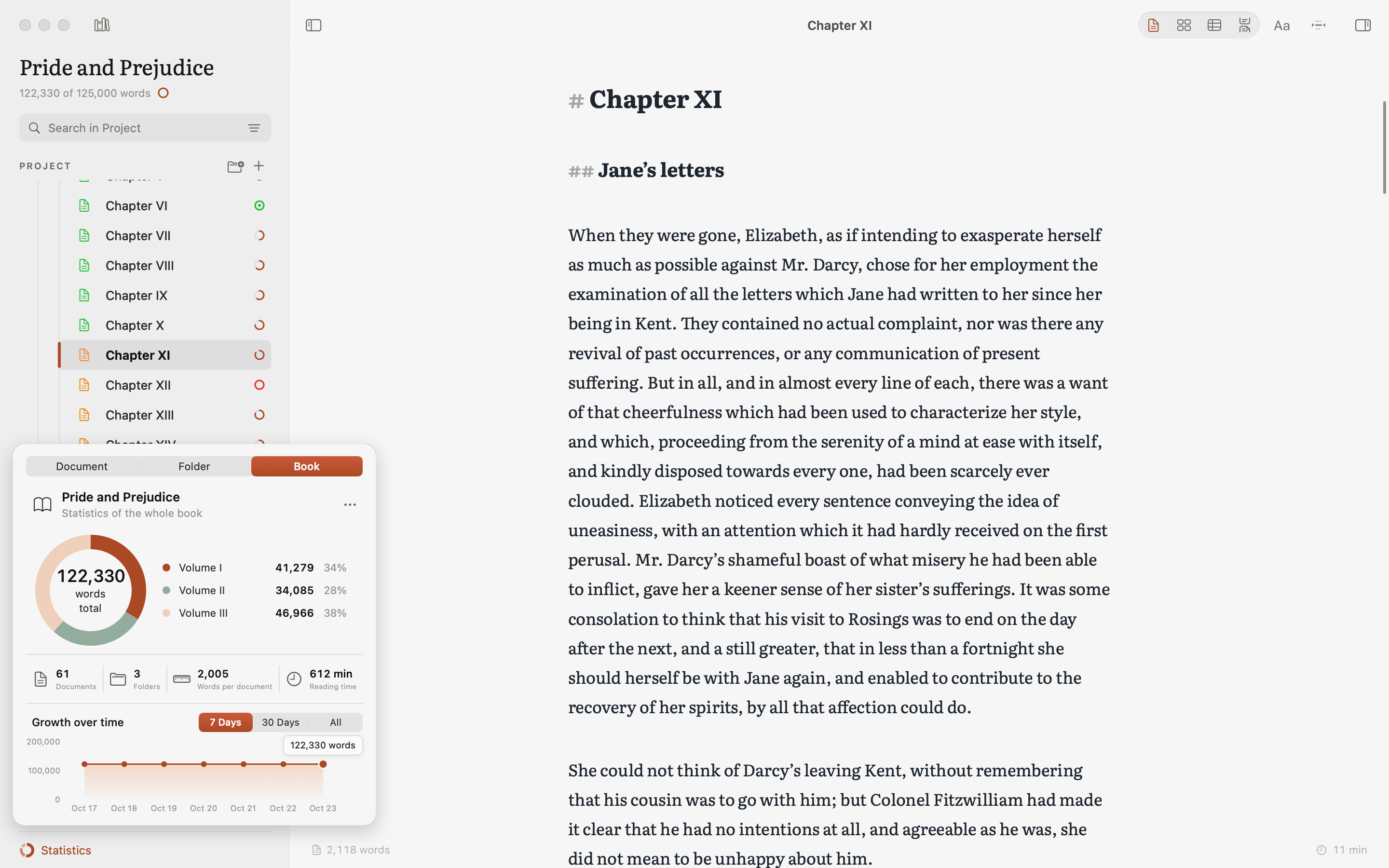
See what each writing session adds. Follow word counts, reading time and daily progress, from a single chapter to the whole book, and find the words you repeat most. A goal with a deadline, or a steady pace every day, gives the next session a clear direction.
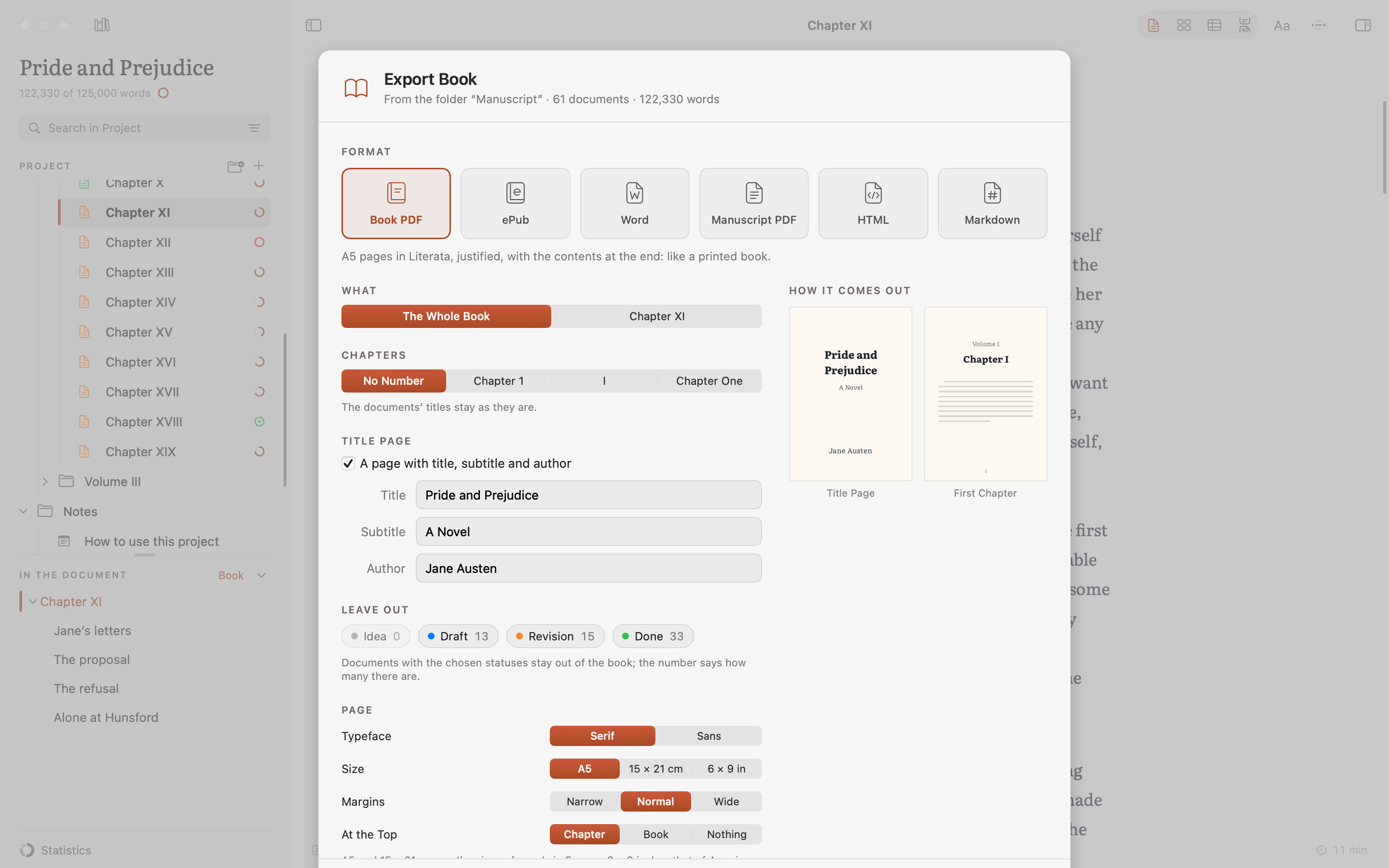
Choose a manuscript PDF for submissions, Word for editing, or a typeset PDF or ePub for readers: the manuscript follows the conventions of the book’s language, from Italian cartelle to the standard format US agents ask for. Set the title page, numbering and a dedication on a page of its own, export or print the whole book or a single chapter with its number, and check the preview. HTML and Markdown exports are available too.
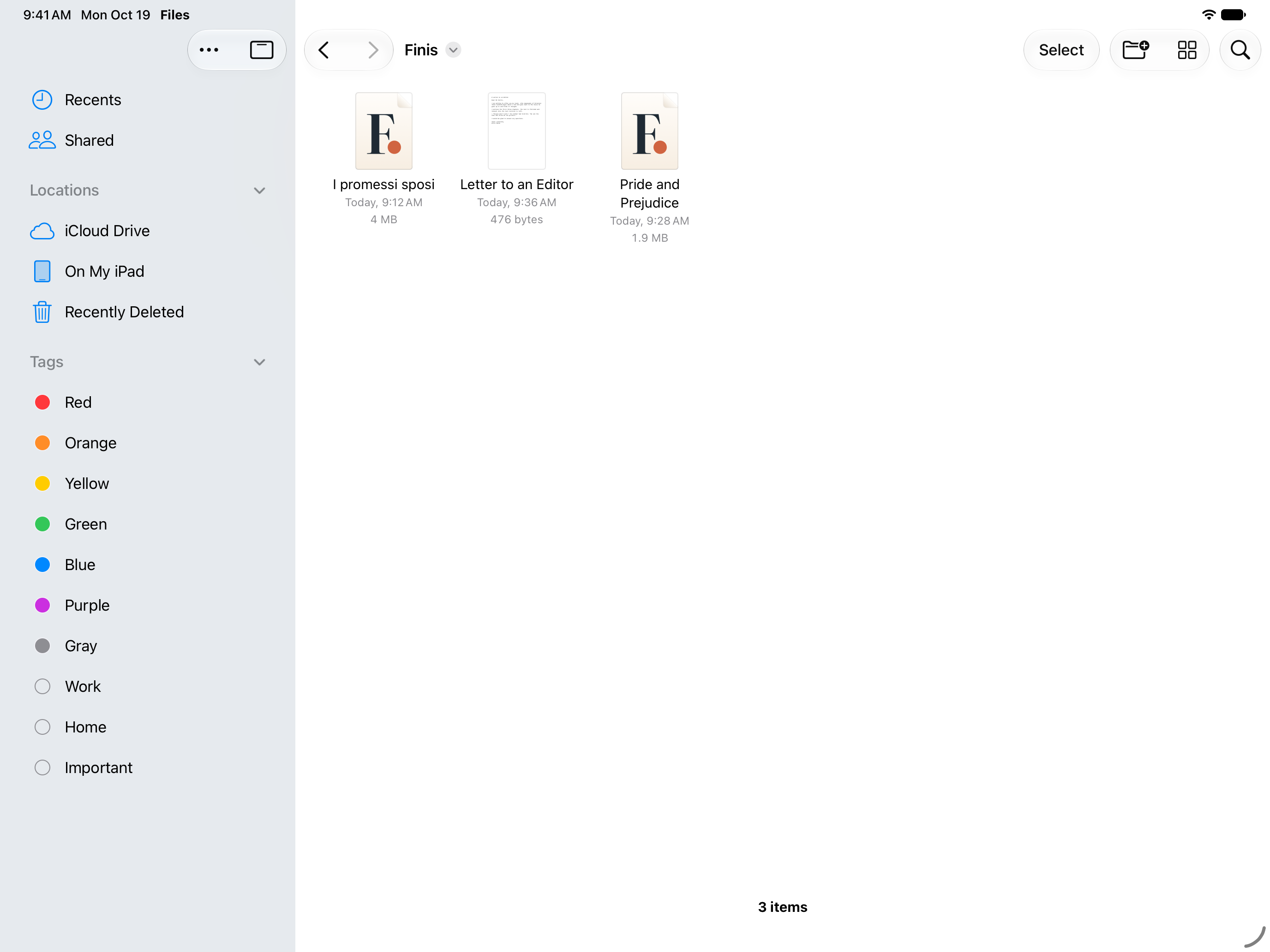
Projects in the Finis folder in iCloud Drive open on both Mac and iPad. The chapter you started at your desk reopens on iPad right where you left it, with its notes, statuses and versions: the format is the same.
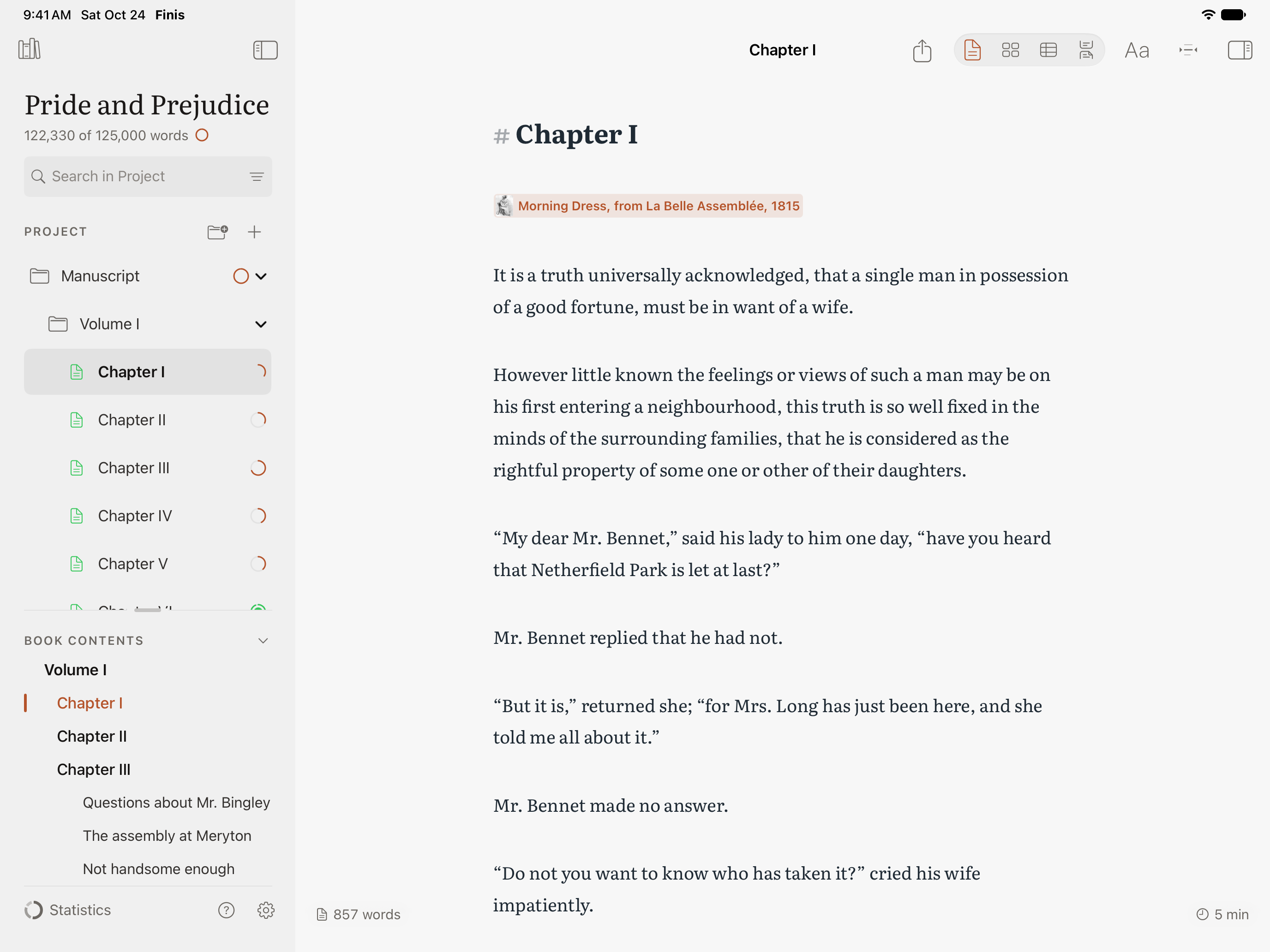
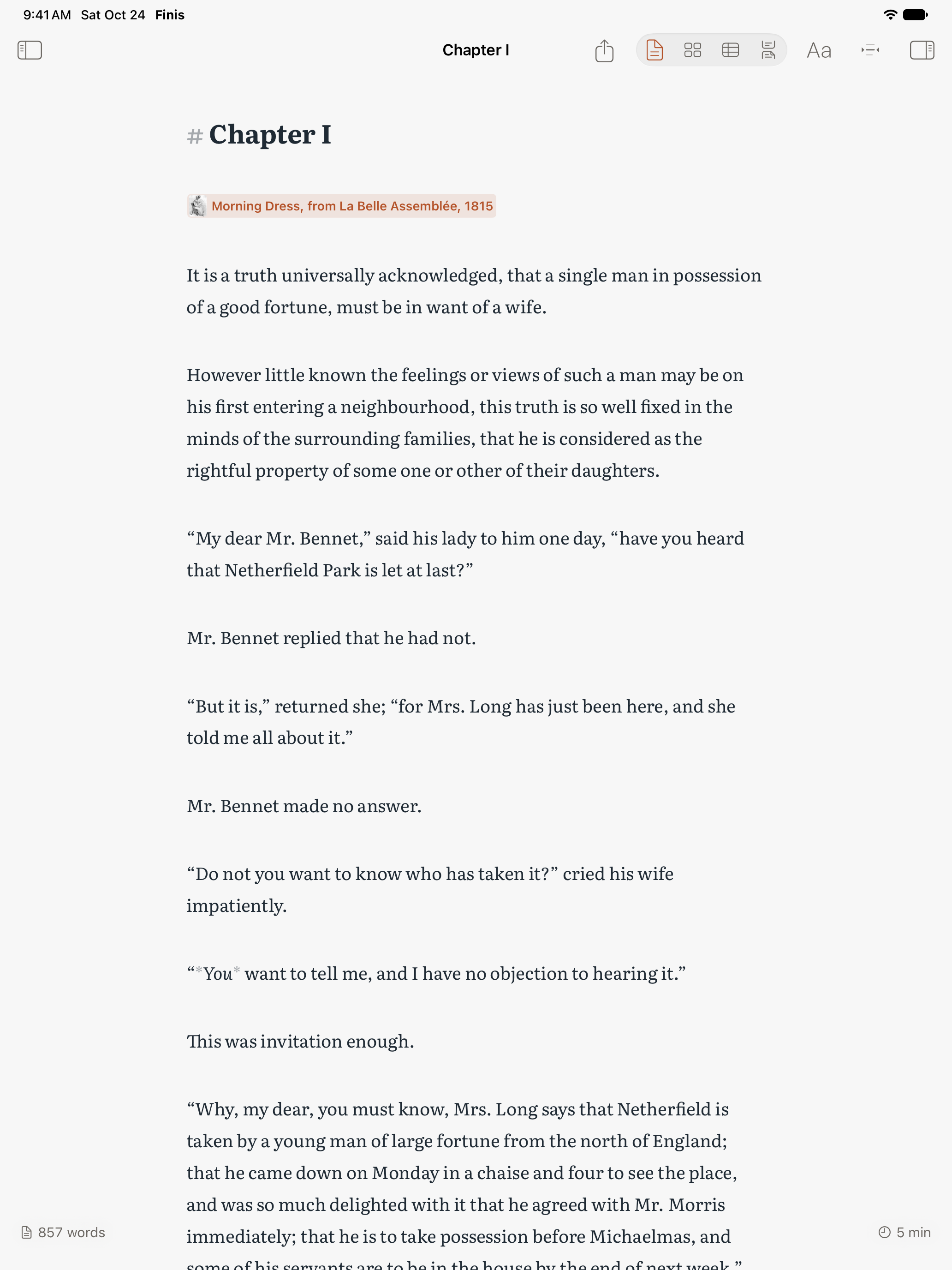
The Mac’s page, sized for your fingers. With a Magic Keyboard you get the menu bar and the Mac’s shortcuts; with Apple Pencil, Scribble turns your handwriting into text. As you write, the header steps aside and leaves just the page.
Open a chapter beside its notes, or write next to another app in Split View and Stage Manager. Drag in a picture from Photos or a PDF from another app: Finis copies it into the project.
Projects have their own icon and a preview with the contents and the opening of the book. A Markdown file opens on its own, with its headings in the sidebar, and Shortcuts adds a note to your project.