
A file without a project
To write a single text, choose File › New Markdown File, or New… › Markdown File in the Library. A blank page opens at once, ready to write in: it is an .md file in the Finis folder, called “Untitled” until you write its first line, which then gives it its name, and it saves itself. If you close it without writing anything, the file doesn’t stay. To rename it, click its name in the sidebar and type, as for the title of a book; Rename… in the menu of the title at the top does the same, and the menu also has Move…. With no project active, ⌘N also opens a blank page; inside a project, ⌘N adds a document to the project and New Markdown File remains available in the File menu. In Settings › Interface › When Finis Opens, choose whether Finis opens on the Library or on a blank page.
Your first project
- Choose File › New Project… (⇧⌘N), or New… in the Library.
- Pick a template. Novel and Essay or Thesis set up the folders and a first document; Empty starts from an empty folder. You can rename the folders whenever you like.
- Name the project. It is created in the projects folder, the one in Settings › Projects; Change… picks another just for this one.
- Write. Finis saves on its own a second after your last keystroke: there is no Save command.
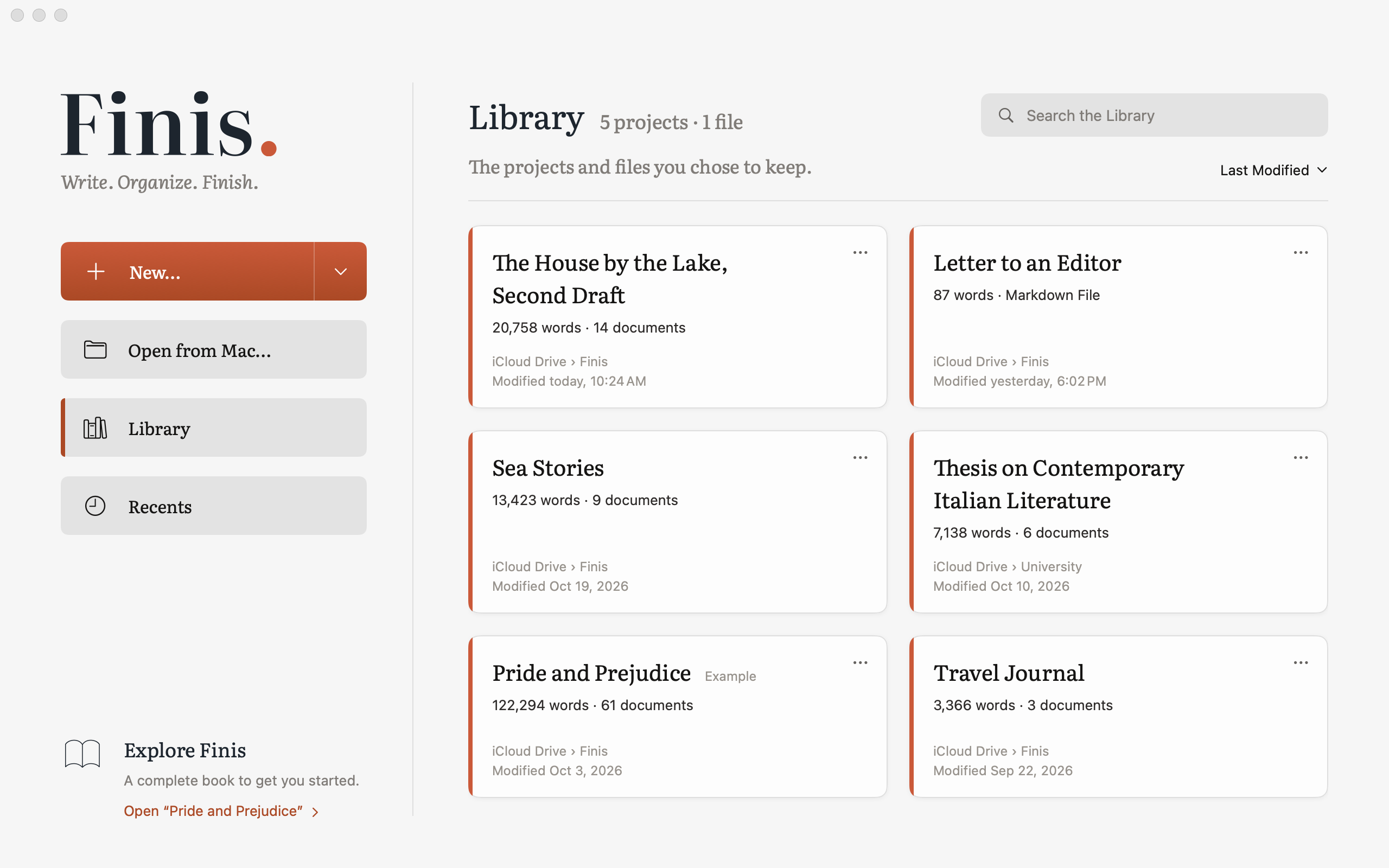
To see Finis at work before you start, open Pride and Prejudice under Explore Finis, at the bottom of the Library, or choose Help › Open the Example: a copy of Pride and Prejudice, with its three volumes, notes and plates, goes into the projects folder and opens. It’s yours to change.
The window
On the left, the sidebar with the project’s folders and documents; in the middle, the page; on the right, the inspector with the document’s information. Open or close it with the first icon in the top-right group, Inspector, or with ⌥⌘I. The button follows the panel’s edge and stays to the left of its divider. The same toolbar lets you choose how to look at the project and export the book.
Opening a project
The Library is where everything starts: it’s what a Finis window shows when no project or file is open in it. On the left, New…, Open from Mac… and the two views: Library, the projects and files you chose to keep, and Recents, those you opened lately, each with its own search and order. In the Library every project is a card with its words, where it is and its last change, and every row of Recents says where it is; its … menu has Open in New Window, Show in Finder and Remove from Library. The Library isn’t a folder: projects and files stay where they are. A new project goes in by itself; what you open from elsewhere appears in Recents, and the + on its row adds it (grey books mean it’s already there). The Library is the same on the Mac and the iPad: what is only on this Mac appears in grey on the iPad, and Move to iCloud Drive, in its … menu, puts it where both can see it. A click opens a project or a file in place of the Library, in the same window. To go back to the Library, use its icon above the sidebar, or Window › Library (⇧⌘L): whatever is open is saved and closed. File › Open from Mac… (⌘O) opens the Finder’s panel: a Finis project, any folder of Markdown files, including one started in Obsidian or iA Writer, or a single file will do; the last ten are also in File › Open Recent and in the menu of Finis’s icon in the Dock. What you open from the menus, the Finder or the Dock goes in place of the Library if the window in front shows it, otherwise in a window of its own. Closing a window just closes it; when they’re all closed, a click on the Dock icon opens the Library again.
A Markdown or text file on its own opens like a project, with what a file alone can have: File › Open from Mac…, Open With › Finis in the Finder, or by dragging it onto the Dock icon. The sidebar has its name, where it is and In the Document, with its headings; the inspector has Review, with comments and suggestions; the page has Aa, the writing modes and Find. Export… (⇧⌘E), also from the icon at the top, turns it into a manuscript or book PDF, Word, ePub, HTML or Markdown, with a preview; Print… (⌘P) opens the same sheet with the two page layouts. Info, Notes and Versions belong to projects, which keep them in their folder. The file saves itself, keeping its encoding and line ends; if another app changes it, Finis reads it again when you come back.
When the file becomes a book, Add to a Project…, under its name in the sidebar and in the File menu, puts a copy at the end of the book of a project in the Library or in Recents, or of a new one with New Project…: whole, or with Split at Headings one document for each heading. The project opens with the text that came in; the file stays where it is, as it was.
Finis opens only the folders you choose, in the Finder or here, and remembers them for next time. If a project was never chosen, say a recent one from an earlier version, Finis asks you once: Choose the Project…
In the Mac’s Shortcuts app, Finis offers two actions: Add a Note puts a text, with a title if you like, in the notes of the project in front, or of the last one opened; Words Written Today gives the words written today in its book.
Trial and unlock
Finis from the Mac App Store is free to try for 14 days, with every feature: the trial starts from Finis › Unlock Finis… or from Start, in the Library’s top-right corner. Then you unlock it with a single purchase, no subscription; on another Mac with the same Apple Account, use Restore Purchases in the same panel. If you don’t unlock it, you can still open, read and export your projects, and they remain in the backups, but you can’t edit them or create new ones.