
The shape of the text
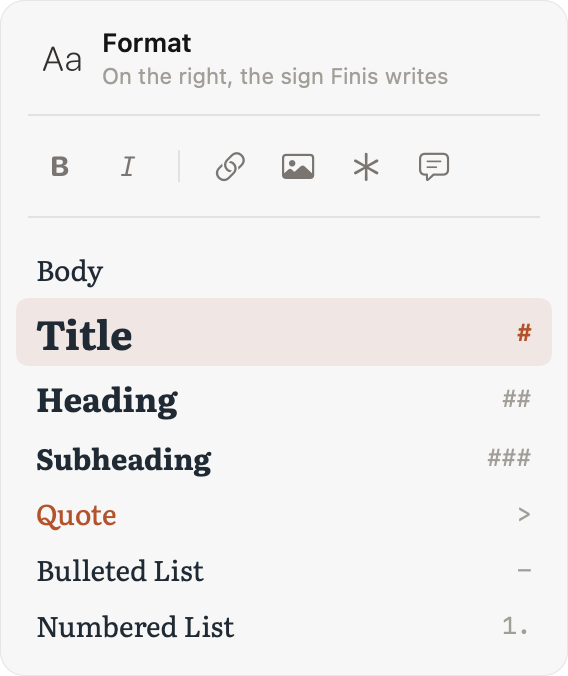
A title starts with #, a heading with ##; italics are written *like this*, bold **like this**. You don’t need to remember: Aa, at the top right, opens Format, with bold, italic, titles, quotes and lists, each with the sign Finis writes beside it. The Markup menu has the same commands. Return continues a list or a quote; on an empty item it ends it. Tables work as in any Markdown app.
- Bold, italic
- ⌘B⌘I
- Body, title, heading, subheading
- ⌥⌘0⌥⌘1⌥⌘2⌥⌘3
- Link
- ⌘K
- Comment
- ⇧⌘K
- Footnote
- ⌥⌘K
- Edit the selected element
- ⌥⌘E
Links and footnotes take little room: the page shows ↗ and the footnote number, and the text stays clean. Point at the sign to read what it holds; click it to edit it. Add an image with Markup › Image…, from Aa or by dragging it into the text: Finis copies it into Media, and the page shows its thumbnail with the caption; click it to see it large.
Comments, footnotes and notes
Three words for three things. A comment is a remark inside the text, and the book leaves it out. A footnote sits at the foot of the page, and the book keeps it. A note is a separate working document.
A comment appears as ✳ beside its highlighted passage. Point at the sign to read it; click to open the panel where you write, edit or delete it. After saving, the caret returns to the manuscript outside the comment. Deleting the comment also removes its highlight and keeps the passage. For rereading, turn on View › Comments in the Text to show the comment’s words after ✳, in italics on a tinted ground. This option is off by default.
With text selected, the right-click menu offers Create Note from Selection: a new note holds the passage, quoted, and a link back to the document.
From the web, or from another app: copy a passage and choose Paste as Note (⌃⌘V), in the File menu or with a right-click in the sidebar. A note is made with the text quoted, already in Markdown, and below it the site as a link to the page, when the browser gives it, and the date.
Punctuation
As you type, the straight apostrophe becomes ’, two hyphens become —, three periods become …. Quotation marks follow the language of the book: “ ” in English, « » in Italian, „ “ in German. Choose the language in File › Language and Punctuation…
Copying and pasting
Text copied from Word, Pages, Google Docs, a web page or Mail arrives with its italics, bold, headings, lists and links, written in Markdown; Paste and Match Style (⌥⇧⌘V) takes the words alone. The other way round, Copy as Formatted Text (⌥⇧⌘C), in the Edit menu or the right-click menu, copies a passage as it reads, without signs, to paste into Mail or Word: footnotes go at the end, comments and suggestions stay out.
Two documents at once
Open Beside (⌥⌘\, or Option-click a document) puts a second document next to the first. Continuous Text (⌘4) shows a folder’s documents one after another, and you can write right there.